
A website is not a brochure you print once and forget. If it runs on WordPress, which powers a large share of small business websites, it is software, and software needs looking after. Skip the maintenance and the risks build quietly: a plugin with a known security hole, a backup that stopped running months ago, a contact form that has been sending enquiries into the void.
This guide explains what “website care” actually involves, why each job matters, and gives you a simple schedule you can follow yourself or use to check what your web company is doing for you.
Why WordPress sites need regular care
A typical WordPress site is made of three layers: WordPress itself (the core), a theme that controls the design, and plugins that add features such as contact forms, SEO tools and galleries. Each layer is updated by different developers on their own schedules. Updates fix bugs, add features and, most importantly, close security holes once they have been discovered and published. The longer a site goes without updates, the more known weaknesses it carries.
Most website attacks on small businesses are not personal. Automated tools scan the internet for sites running out-of-date software and exploit them in bulk, to send spam, host phishing pages or inject links. The UK’s National Cyber Security Centre makes the same point in its small organisations guide to cyber security: keeping software updated and backing up your data are two of the most effective things a small business can do.
The six parts of website care
1. Updates
Core, theme and plugin updates should be applied promptly, ideally after a backup and with a quick check afterwards that nothing has broken. Occasionally an update conflicts with another plugin, which is why careful maintainers test on a copy of the site (a staging site) first, or at least check the key pages and forms straight after updating.
2. Backups
Backups should run automatically, include both the files and the database, and be stored somewhere other than the web server itself. If the server fails or the site is hacked, a backup sitting on the same server may be lost too. Just as important: a backup you have never tried to restore is a hope, not a plan. Test a restore every few months.
3. Security
- Use strong, unique passwords and two-factor authentication for every admin account.
- Remove old user accounts, such as a previous web designer or ex-employee.
- Delete plugins and themes you no longer use, rather than just deactivating them.
- Make sure the site always loads over HTTPS with a valid SSL certificate.
- Use a security plugin or host-level firewall to block common attacks and alert you to problems.
If you want a recognised standard for your wider business IT, the government-backed Cyber Essentials scheme covers the basics, and some public sector and larger customers now ask suppliers to hold it.
4. Monitoring
Uptime monitoring checks your site every few minutes and alerts you if it goes down, so you hear about it before a customer does. It is also worth monitoring for unexpected changes, malware warnings from Google, and your domain and SSL renewal dates.
5. Speed and performance
Sites slow down over time as images are added and plugins pile up. A monthly speed check on mobile catches problems early. We explain the measures Google uses in our guide to Core Web Vitals for small businesses.
6. Content and enquiries
The most expensive website problem is often the simplest: a broken contact form. Test every form regularly and check the messages arrive in an inbox someone reads. Keep opening hours, prices, services, photos and contact details current, and keep your website details consistent with your Google Business Profile.
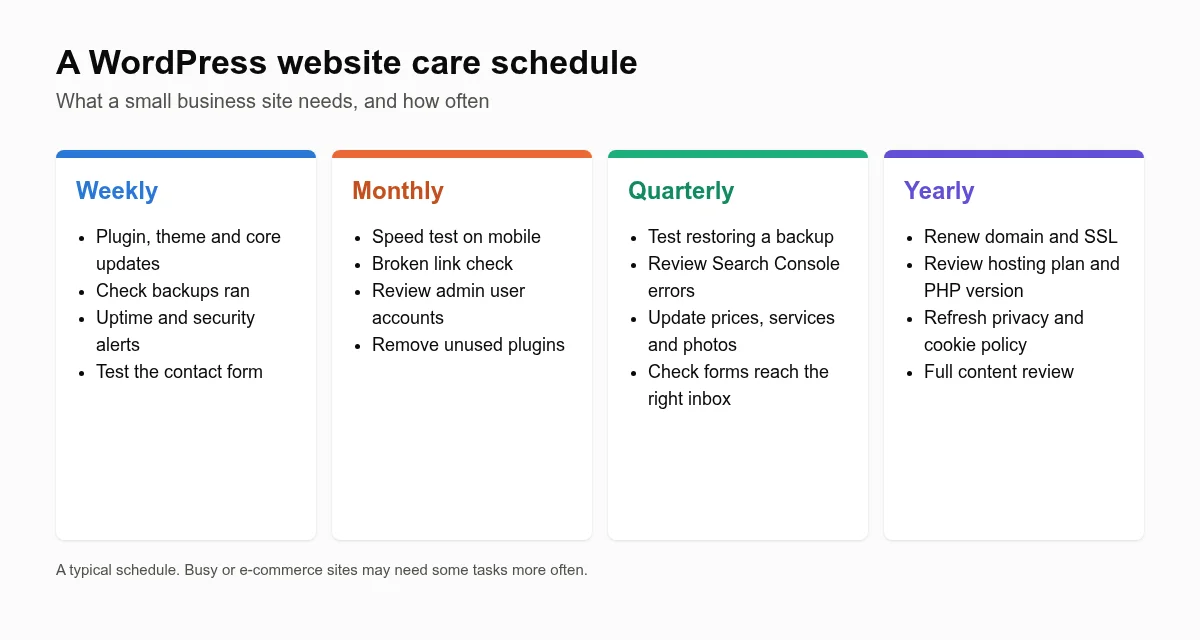
A maintenance schedule you can follow
| How often | Tasks |
|---|---|
| Weekly | Apply updates after a backup; confirm backups ran; review uptime and security alerts; send a test enquiry through the contact form |
| Monthly | Mobile speed test; broken link check; review admin users; delete unused plugins and themes |
| Quarterly | Test restoring a backup; review Google Search Console for errors; refresh services, prices and photos; check form notifications go to the right people |
| Yearly | Renew domain and check SSL; review hosting and PHP version; update privacy and cookie policies; full content review |
Signs your website is not being looked after
- The WordPress dashboard shows a long list of pending updates.
- Nobody can tell you when the last backup was, or where it is stored.
- You do not have your own admin login, or do not know who controls your domain.
- The copyright year in the footer is several years old.
- Browsers show “Not secure” next to your address.
- Enquiries have gone quiet with no obvious reason.
Make sure you own the keys
Whoever looks after your site, make sure the business itself holds the domain registration, an administrator login to the website, access to the hosting account and copies of backups. Plenty of business owners have lost their website, or their domain, when a relationship with a web designer ended badly. Keep a record of these logins somewhere secure, such as a password manager.
Do it yourself, or hand it over?
You can absolutely do website care yourself if you are comfortable in the WordPress dashboard and set aside time each week. Many business owners find it slips when work gets busy, which is exactly when an enquiry form failing costs the most. If your site is part of a wider plan to win local work, our guides to local SEO for small businesses and web design for tradesmen explain how the pieces fit together.
Website care, done for you
Every Savvy Saver website includes hosting, updates, off-site backups, security monitoring and speed checks as standard, with a plain-English report each month. See how it works, read about our growth partner plan, or get in touch for a free check of your current site.